
Installation and user guide.
Learn how to install Repaste, capture clipboard history, organise reusable lists and tune the app for the way you work.
Repaste runs quietly in the background on Windows and macOS. Text, links, code, email addresses, colours and optional images stay available until you need to paste them again.
Install Repaste
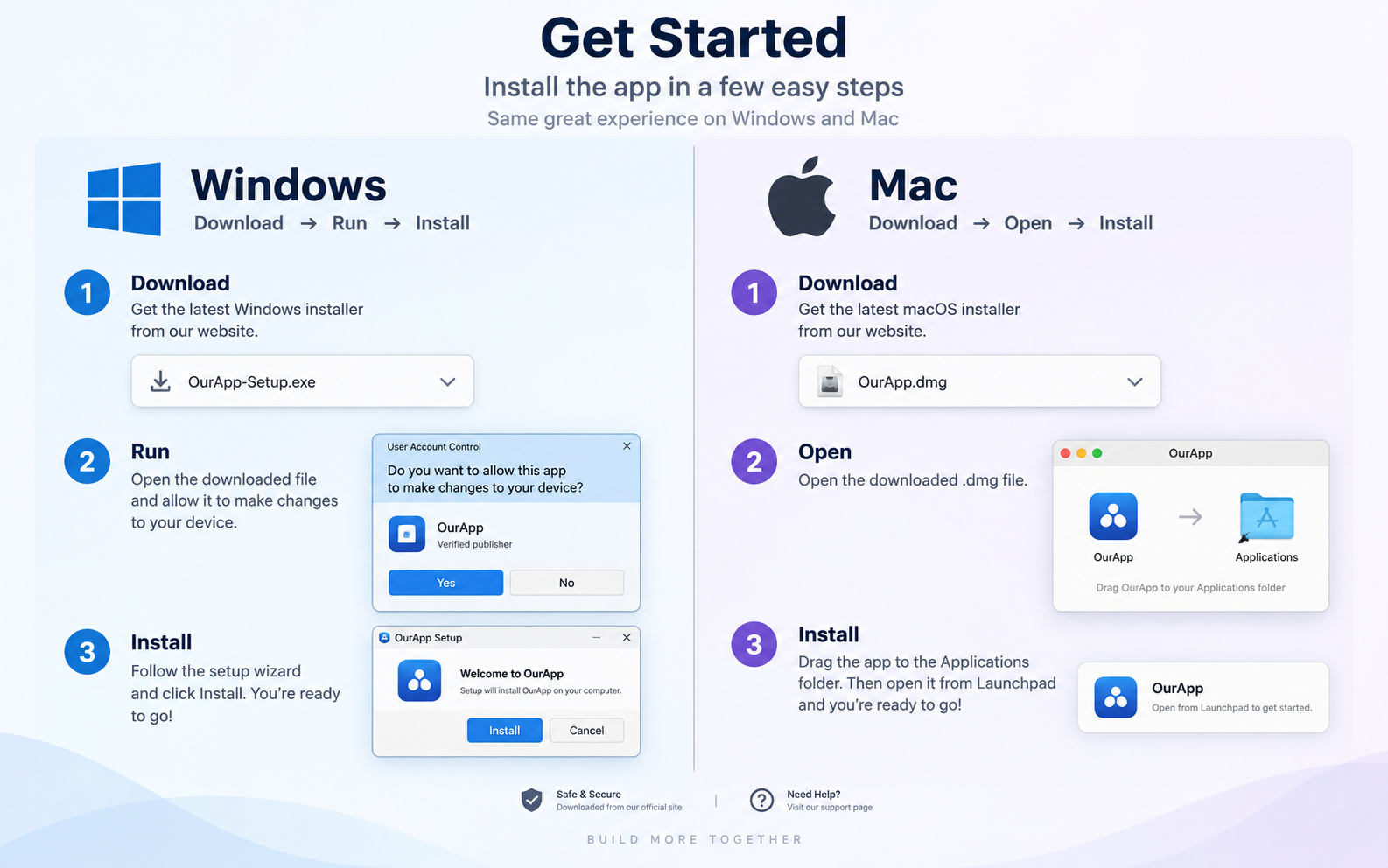
Use the installer for your operating system, then leave Repaste running so it can watch for new clipboard content.
- 1
Windows: open the installer and follow the setup steps.
- 2
macOS: open the disk image, move Repaste to Applications, then launch it.
- 3
If macOS blocks the first launch, use System Settings → Privacy & Security → Open Anyway.
- 4
Repaste opens with the search field ready and begins monitoring new copies.
The installed release starts with your computer by default. This control is disabled in development builds so test runs do not change your login items.
Copy once. Find it later.
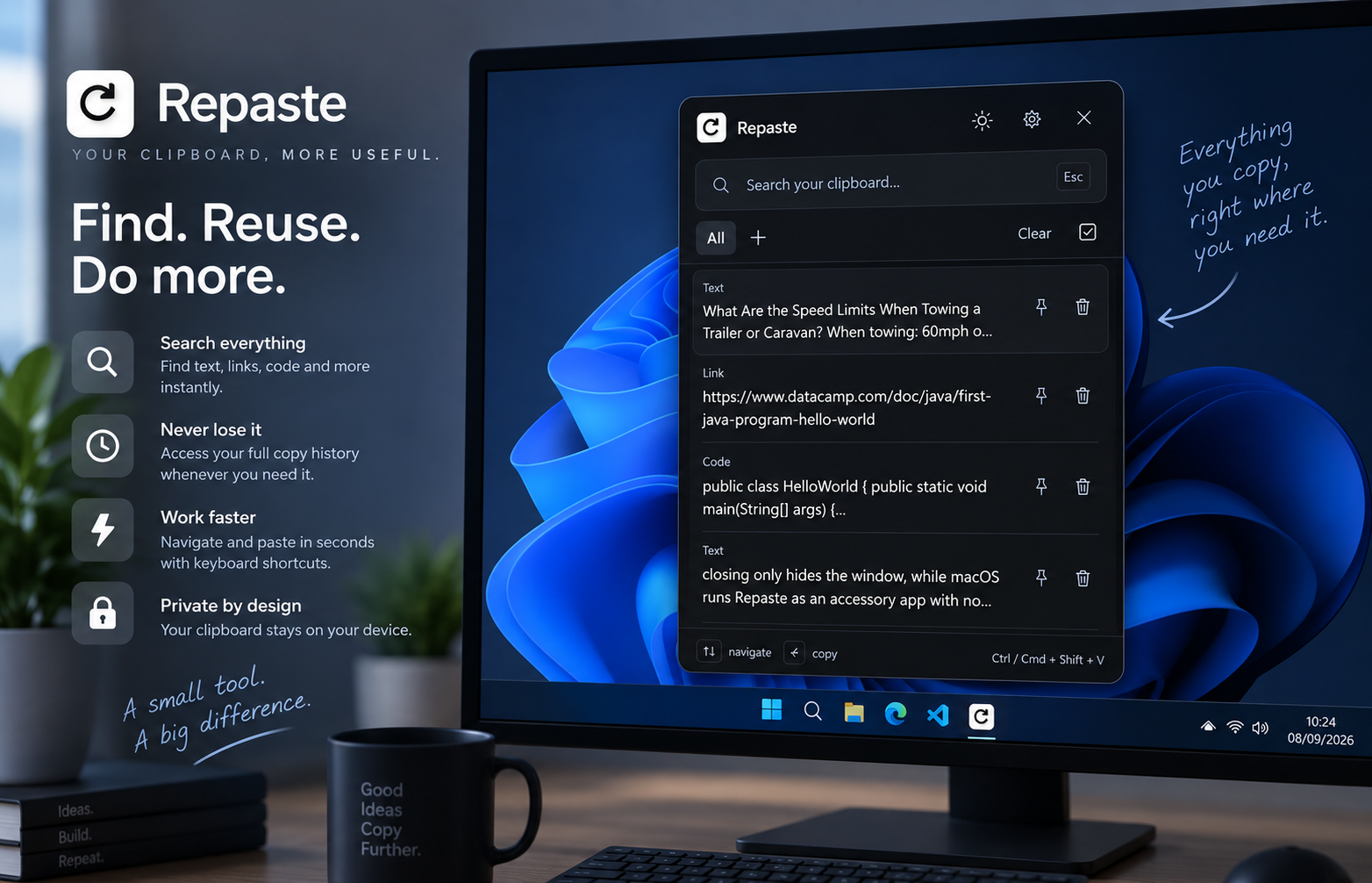
Repaste records supported clipboard content automatically while it is running.
- 1
Copy text, a link, code, an email address, a colour value, a number or an image in any application.
- 2
The item appears at the top of the selected Repaste tab. All keeps up to 100 unpinned items.
- 3
Repaste preserves spaces, indentation and line endings so copied code can be restored accurately.
- 4
Repeated content is stored once in each list, while the same content may exist independently in different lists.
Repaste cannot know whether another tool copied something intentionally. Use Disable images if you do not want screenshots or copied images recorded.
Search and reuse history
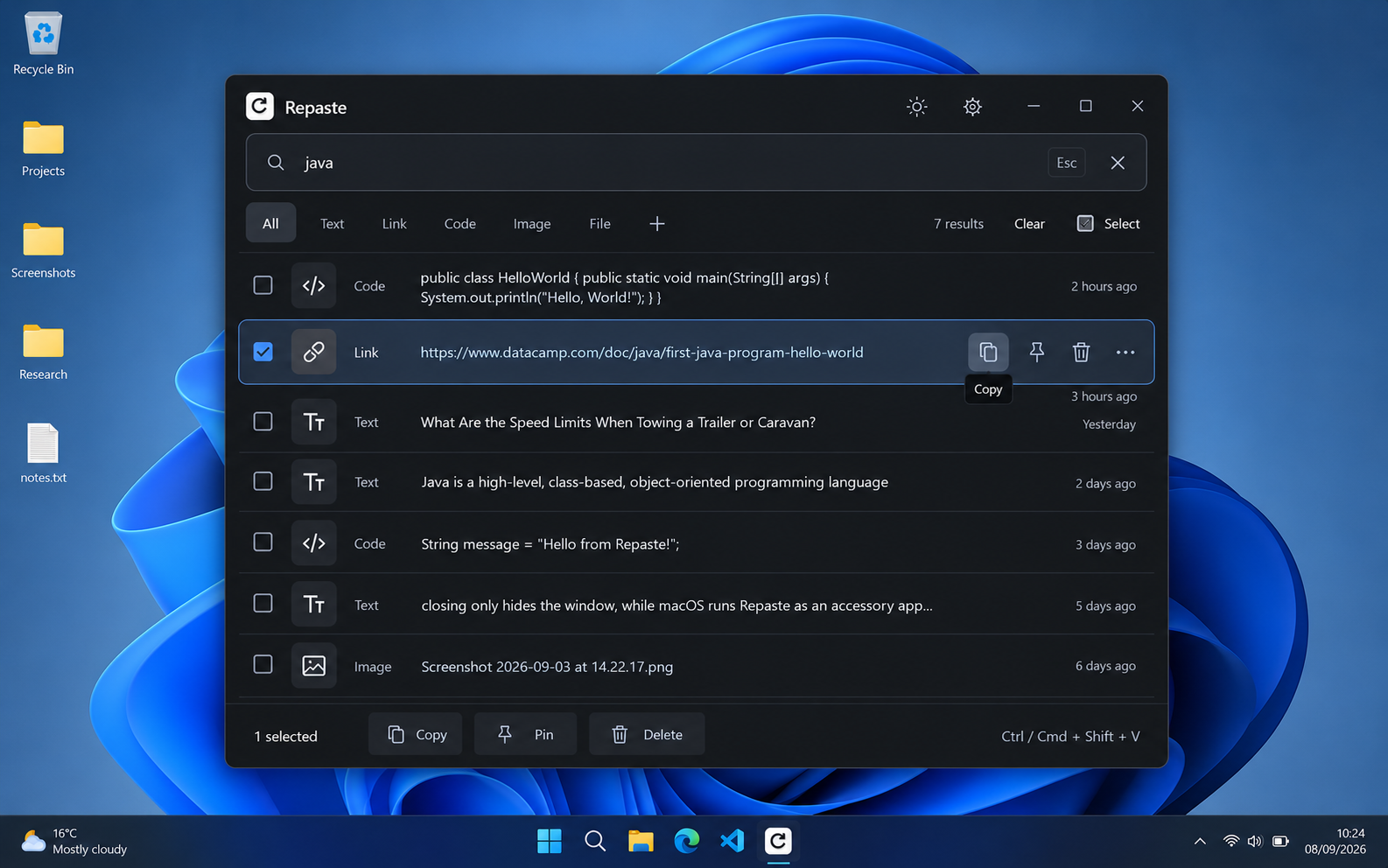
The main window is designed for quick keyboard or pointer use.
- 1
Type in Search to filter the current tab. Windows paths and literal percent or underscore characters are supported.
- 2
Use ↑ and ↓ to move through results, then press Enter to copy the selected item.
- 3
Click a row to copy it. Images return to the clipboard as images.
- 4
Pin anything you want to keep. Pinned items remain when All reaches its history limit or when history is cleared.
- 5
Delete one item with its bin button, or use Clear to remove all unpinned items from All.
Organise clips into lists
A selected list receives new copies until you return to All or select another list.
- 1
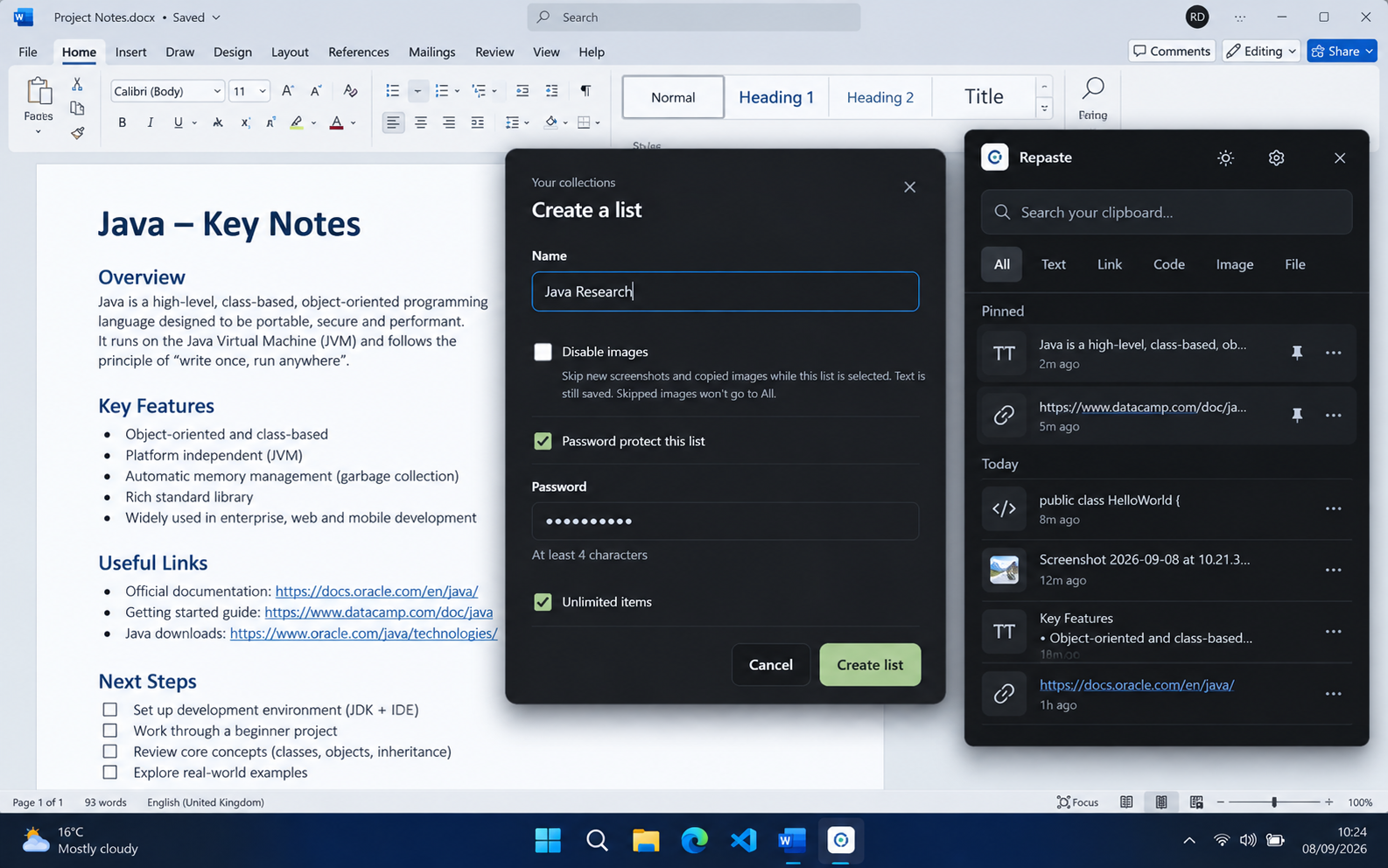
Select +, name the list and choose whether it accepts images.
- 2
Optionally protect the list with a password. Protected lists start locked after Repaste restarts.
- 3
Choose an unlimited list or set a maximum number of items.
- 4
When an ordinary limited list fills, older unpinned items move to All. When a protected list fills, its existing contents stay in place and new copies go to All.
- 5
Use Clear list to empty the current list or the bin beside it to delete the list.
List passwords control access inside Repaste. Clipboard contents remain stored locally in the app database and are not encrypted.
Select and copy several items
Selection mode is useful when several text clips belong together.
Select the checkbox icon above the history. Choose individual rows or use Select all.
Selected text clips are joined with blank lines and copied as one clipboard item.
One selected image can be copied normally. With multiple items, images are skipped; a selection containing only multiple images cannot be combined.
Control image capture
Screenshots and copied images are supported on Windows and macOS, with independent choices for All and each new list.
- 1
Open Settings and turn on Disable images to skip new images in All.
- 2
When creating a list, select Disable images if that list should accept text only.
- 3
Skipped images are ignored completely and do not fall back to filenames or text.
- 4
Existing saved images remain visible and can still be copied after image capture is disabled.
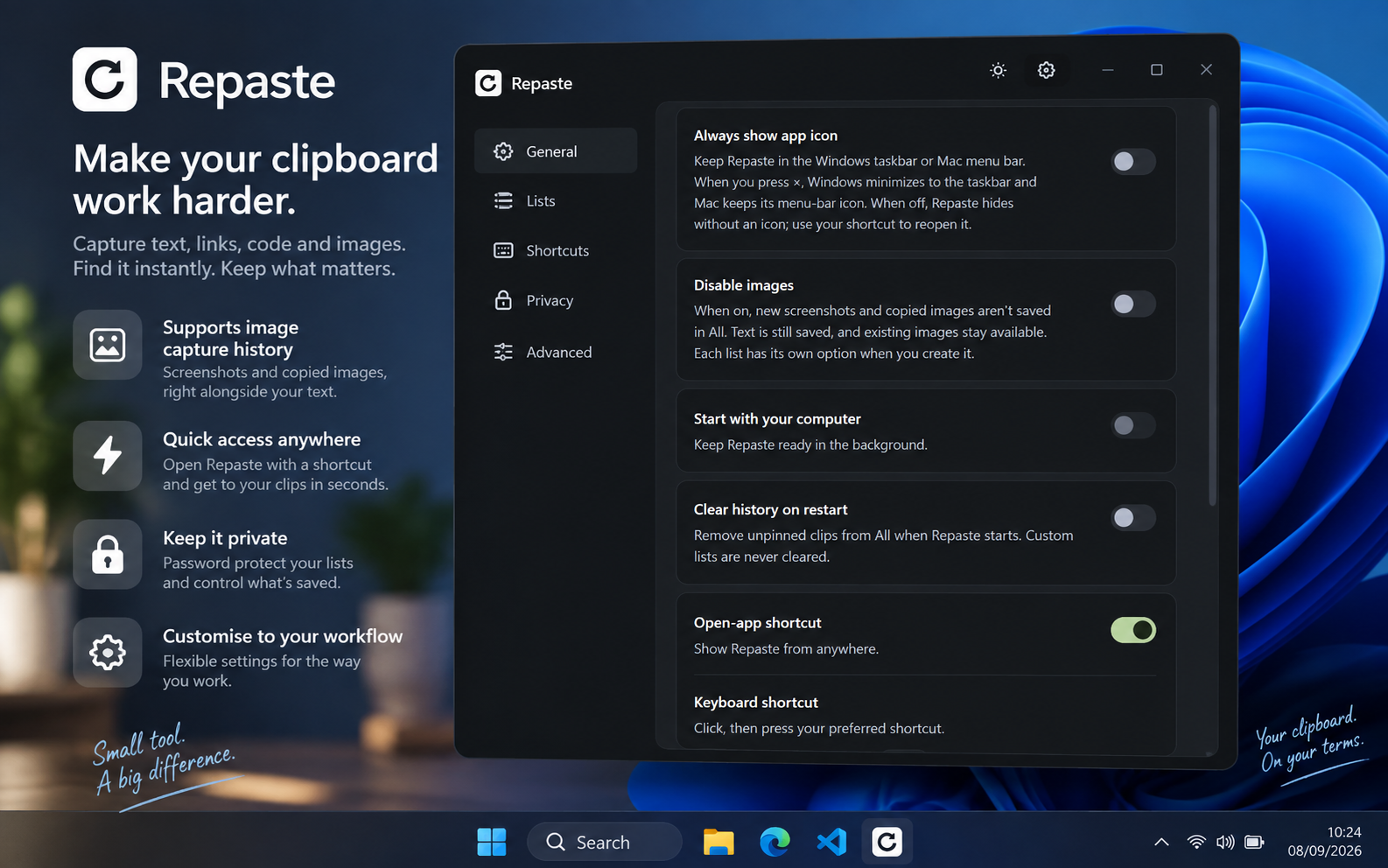
Settings reference
Preferences apply while Repaste runs in the foreground or background.
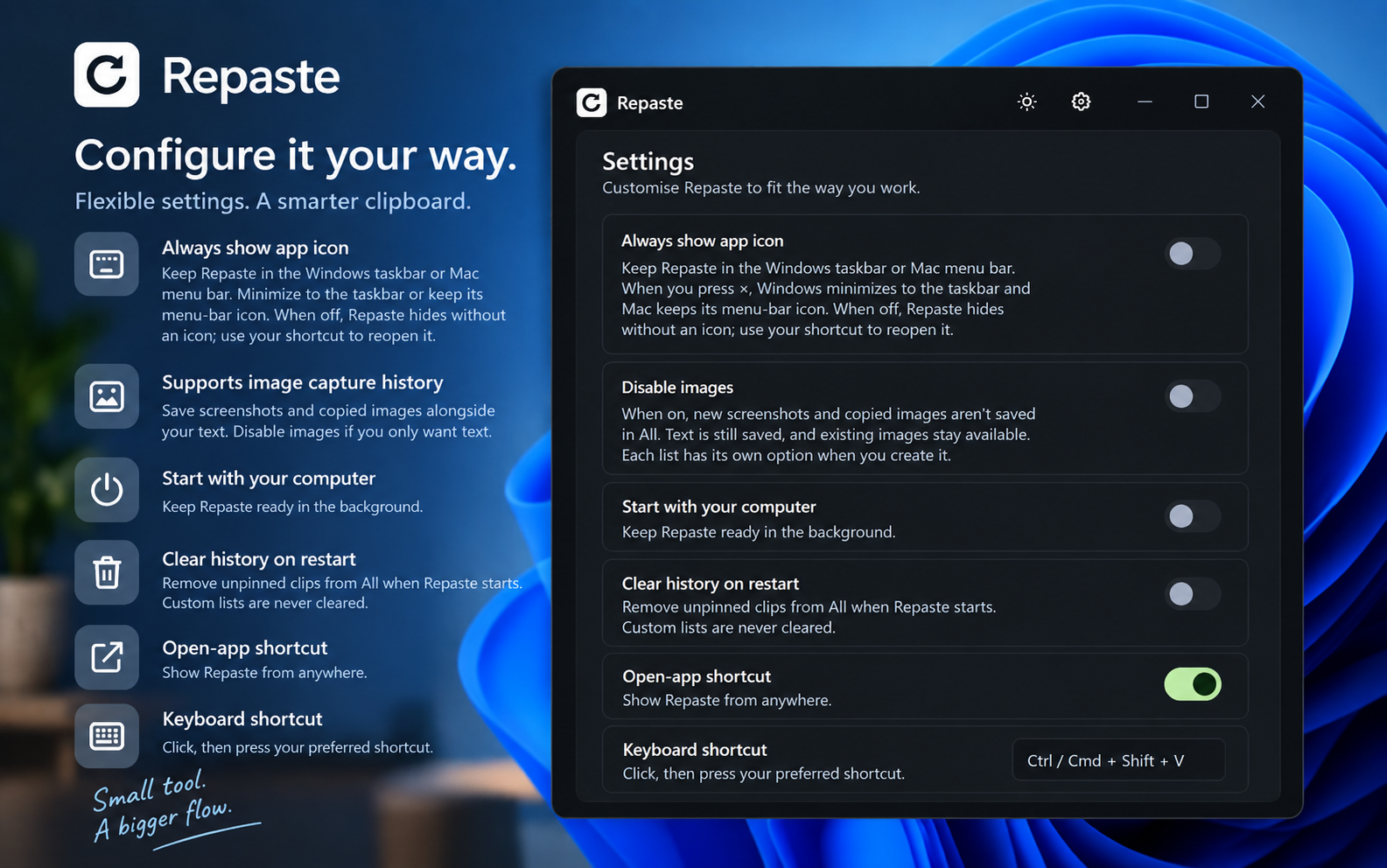
Off by default. When enabled, closing the window minimizes Repaste to the Windows taskbar or keeps its icon in the Mac menu bar. When off, use your shortcut to reopen it.
Stops new screenshots and copied images from being stored in All. Text capture continues.
Enabled by default in installed release builds. Repaste registers itself to start when you sign in.
Removes unpinned clips from All when Repaste starts. Custom lists are never cleared by this option.
Shows Repaste from anywhere. Disable the switch if you do not want a global shortcut.
The default is Ctrl/Cmd + Shift + V. Record another modified key combination or select Reset.
Use the theme control in the title bar. Your choice is remembered.
Resize Repaste to suit your workspace. Its logical size is restored on the next launch.
The × control keeps Repaste running. Its exact Windows and macOS behaviour follows Always show app icon.
Privacy and local data
Repaste is a local clipboard utility. Its core features do not require an online account.
Clipboard history, lists and preferences are stored in Repaste's application-data folder on your device.
Passwords are hashed. List contents themselves are not encrypted, so device-level access should still be protected.
The app does not provide cloud sync or send clipboard history to a Repaste service.
Clipboard history may contain private information. Clear items you no longer need and use your operating system's account security and disk encryption where appropriate.
Frequently asked questions
How do I reopen Repaste after pressing ×?⌄
Use the configured open-app shortcut, which defaults to Ctrl/Cmd + Shift + V. If Always show app icon is enabled, you can also use the Windows taskbar or Mac menu-bar icon.
Why is Start with your computer disabled while I am testing?⌄
Repaste deliberately disables autostart in development builds so testing does not modify your login items. The control is available in an installed release and defaults to enabled.
Why did Repaste capture a screenshot I did not mean to save?⌄
Screenshot and snipping tools often copy images automatically. Repaste sees that as a normal clipboard change. Turn on Disable images for All, or choose Disable images when creating a text-only list.
What happens when a list reaches its limit?⌄
An ordinary list moves its oldest unpinned overflow items to All. A password-protected list keeps its current contents and sends new copies to All. Pinned clips are retained.
Can the same clip exist in more than one list?⌄
Yes. Repaste prevents duplicates within the same list, but identical text or images can exist independently in All and in different lists.
Does a list password encrypt my clips?⌄
No. It locks access through the Repaste interface after the app restarts. The password is hashed, but clip content remains in the local database without application-level encryption.
Why can I not combine several images with bulk copy?⌄
The system clipboard cannot represent several independent images as the combined text format Repaste uses. A single image can be copied; in mixed selections, text is combined and images are skipped.
Does clearing history delete pinned clips or custom lists?⌄
No. Clear removes unpinned items from All. It does not remove pinned clips or items stored in custom lists. Use Clear list when you want to empty a selected list.
My macOS device will not let me install Repaste. What should I do?⌄
If you did not purchase from the App Store, macOS can sometimes block an application installed manually until you approve it. Try opening Repaste once, then open System Settings → Privacy & Security. Scroll to the security message for Repaste and choose Open Anyway. Confirm the prompt using your administrator password if requested.
Apple changes these screens between macOS versions. The video below demonstrates the installation process.