
Stay in your flow.
Install PromptDeck, prepare clear presenter cues and keep them within reach while you present.
Install PromptDeck
Use the installer supplied by Sanity OS, then open PromptDeck from your normal applications menu.
Windows
- Open the PromptDeck .exe or .msi installer.
- Review and accept the licence agreement.
- Follow the installer prompts, then launch PromptDeck from the Start menu.
macOS
- Open the PromptDeck .dmg file.
- Drag PromptDeck into the Applications folder.
- Open it from Applications. If macOS blocks it, follow the FAQ instructions below.
Create a prompt plan
Build a clear sequence of presenter cues, then arrange each section in the order you want to cover it.
- 1
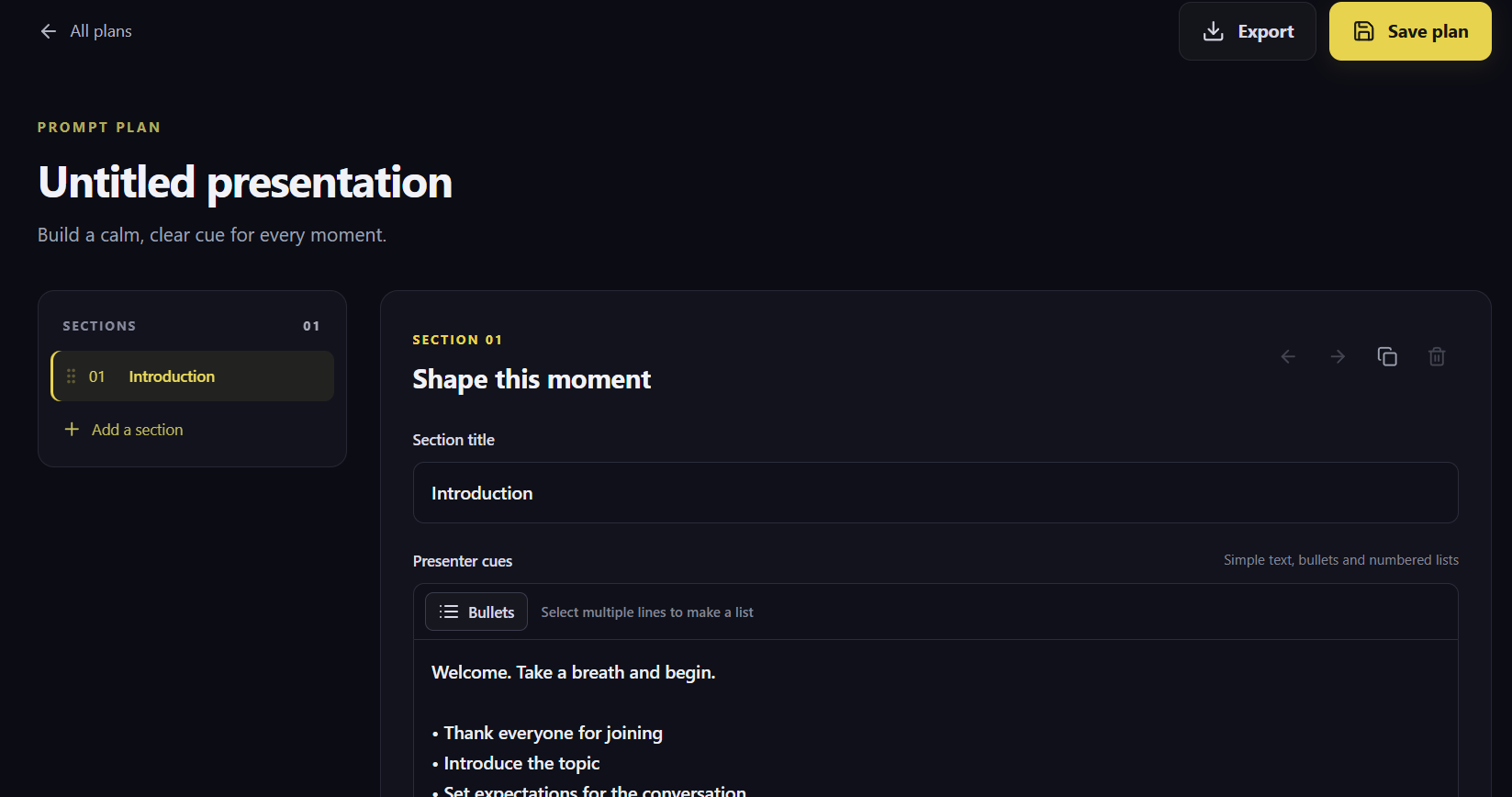
Select New prompt plan on the main screen and give the presentation a clear name.
- 2
Add a section for each part of your presentation, with a short title and the cues you want to remember.
- 3
Use bold, italic, underline, bullets or numbered lists to make important prompts easy to scan.
- 4
Drag sections by their handles to change the order.
- 5
Select Save plan when you are ready.
Plans are stored locally. Use Export to create a JSON backup and Import to restore it or move it to another computer.
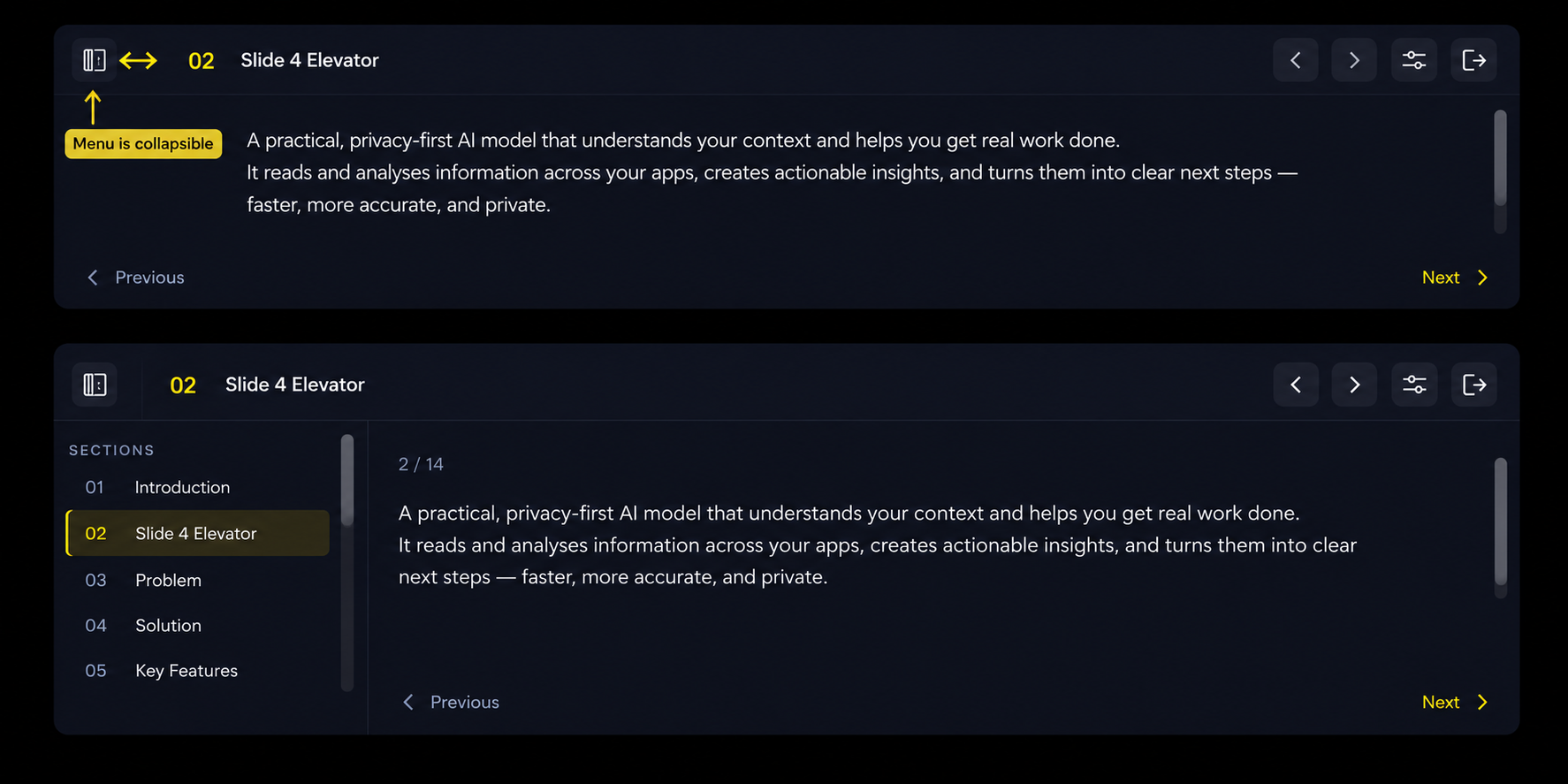
Use the floating prompter
Start a plan in presentation mode to keep your cues available in a compact window beside your slides.
- 1
Select Present on a plan from the home page.
- 2
Move the prompter beside your slides and resize it by dragging its edges.
- 3
Use the on-screen controls, arrow keys, or Page Up and Page Down to move between sections.
- 4
Collapse the section list when you want to give your current cue more room.
- 5
Use the exit presentation control when you are ready to return to your plans.
PromptDeck remembers the prompter's last size and position for your next presentation.
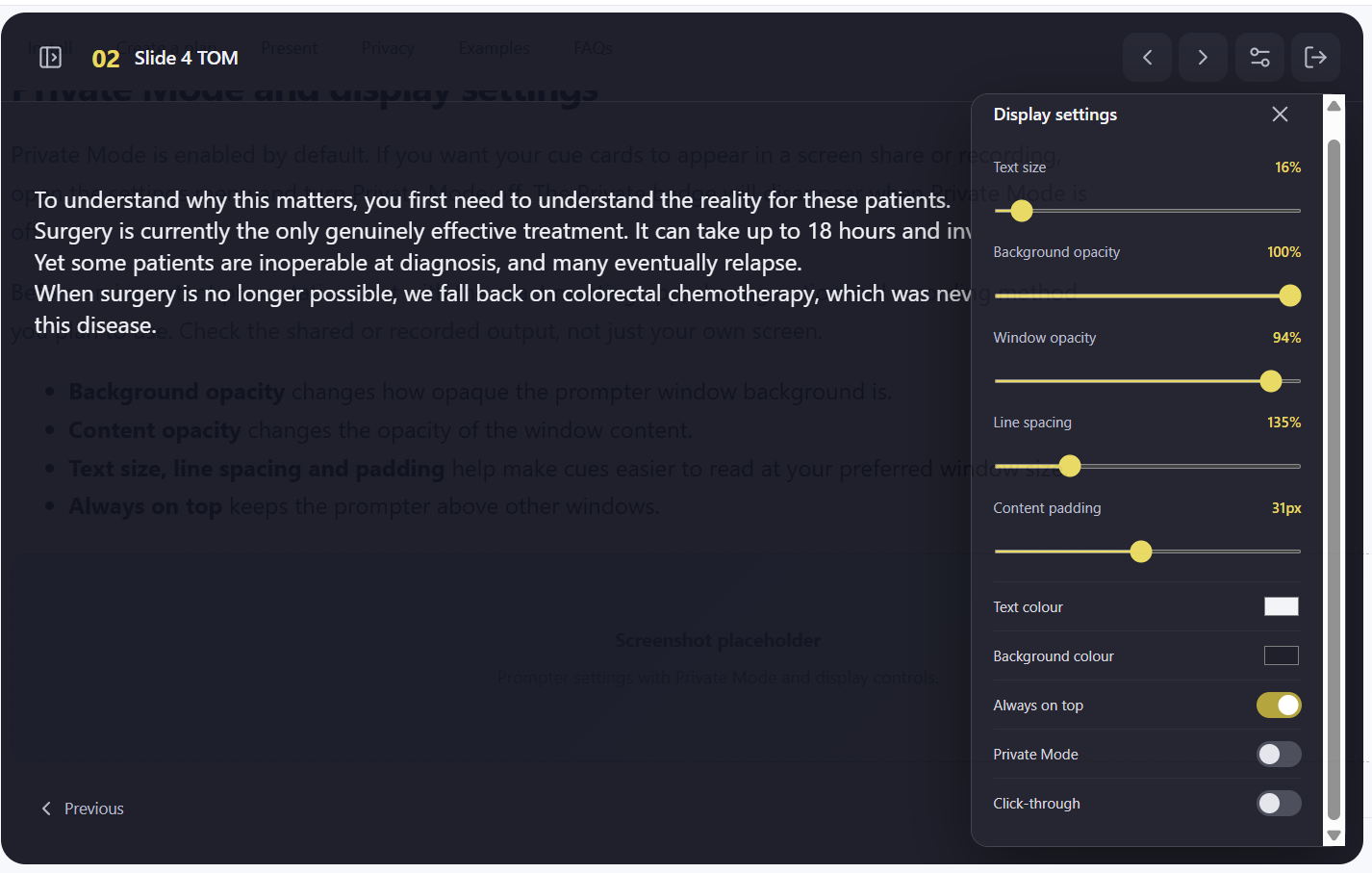
Private Mode and display settings
Tune the prompter for your screen and control whether supported capture methods can include it.
- 1
Private Mode is enabled by default. Turn it off when you intentionally want cues to appear in a share or recording.
- 2
Adjust text size, line spacing and padding for comfortable reading at your chosen window size.
- 3
Change background and content opacity to balance your cues with the presentation behind them.
- 4
Use Always on top to keep the prompter above other windows.
- 5
Test the exact meeting app, sharing option and recording method before an important presentation.
Capture protection depends on the operating system and capture method. Check the shared or recorded output rather than relying only on what you see locally.
Simple ways to structure your cues
Keep each cue brief enough to scan while speaking. Write the reminder you need rather than a full script unless reading verbatim suits your presentation.
Opening · Problem · Demonstration · Benefits · Questions
Purpose · Progress · Risks · Decisions needed · Next steps
Learning goals · Key concepts · Exercise · Recap · Questions
Frequently asked questions
Answers covering presentation controls, local storage, privacy and installation.
Will the prompter always be hidden from a screen share?
PromptDeck's Private Mode has been tested with Google Meet, Zoom, Microsoft Teams, Webex and other popular meeting tools. It requests operating-system capture protection so the prompter remains visible to you while hidden from supported shares and recordings. Protection can vary by operating system, meeting application and capture method, so test your exact setup before presenting.
Can I resize or move the prompter?
Yes. Drag the window edges to resize it and drag the window to reposition it. PromptDeck remembers the last size and position for your next presentation.
Where are my prompt plans stored?
Prompt plans and settings are stored locally on your device. Export plans regularly if you want a separate backup or need to move them to another device.
How do I move sections into a different order?
In the editor, drag a section using its handle in the section list and drop it where you want it to appear.
My macOS device will not let me install PromptDeck. What should I do?
Try opening PromptDeck once, then open System Settings → Privacy & Security. Find the security message for PromptDeck and choose Open Anyway. Confirm using your administrator password if requested.
Apple changes these screens between macOS versions. The video below demonstrates the process.
Can I use the same plan on another computer?
Yes. Export the plan as a JSON file on the first computer, move the file securely, then use Import on the other computer.
Tell us where you are stuck.
Choose Product support on the contact form and describe the screen or action causing the problem.